|
User Field Definitions
|   |
|
User Field Definitions
| |
User Field Definitions is where you define each user field you would like to use. You define the name of the user field and it attributes, such as the type of user field (Text, Notes, Date/time, etc.). After you have defined a user field, you select where you want to use the user field and how it will appear on the screen using User Fields Required.
Once a user field has been defined and is used by DMS, it cannot be deleted unless all references to the user field using are assigned to another user field or all references are deleted. Instead of deleting a user field you can make it unavailable for use by unselecting the Available check box.
When you select Tables | User Fields | User Fields Definitions, the following windows appears listing the current user fields:
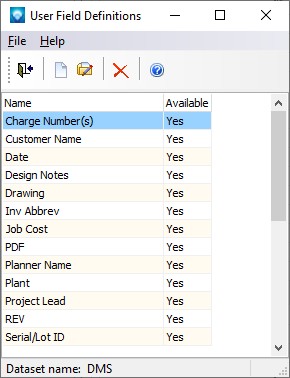
Valid commands are:
 .
. .
. . DMS will confirm the delete. Click OK to delete the user field, or click Cancel to cancel the delete.
If New was selected, the following window appears:
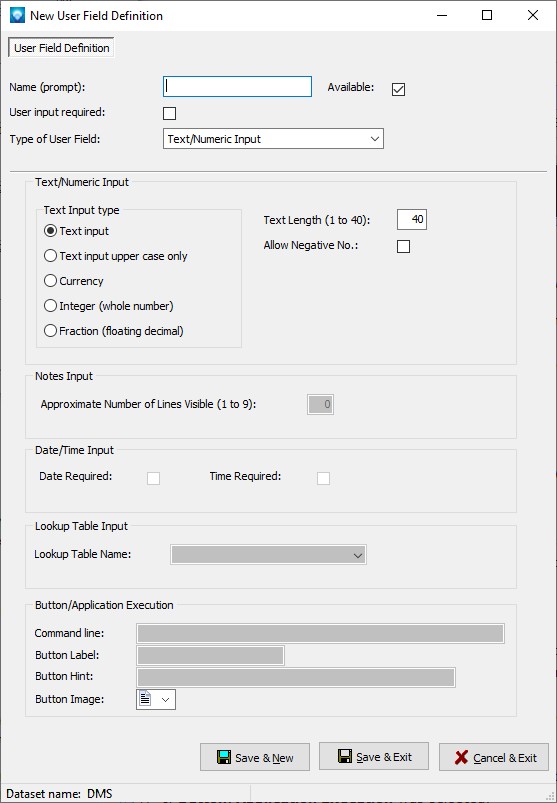
The following explains the prompts on the resource pool window:
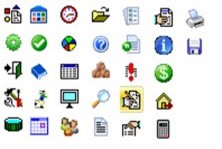
 and
and  are two examples of user field buttons with icons.
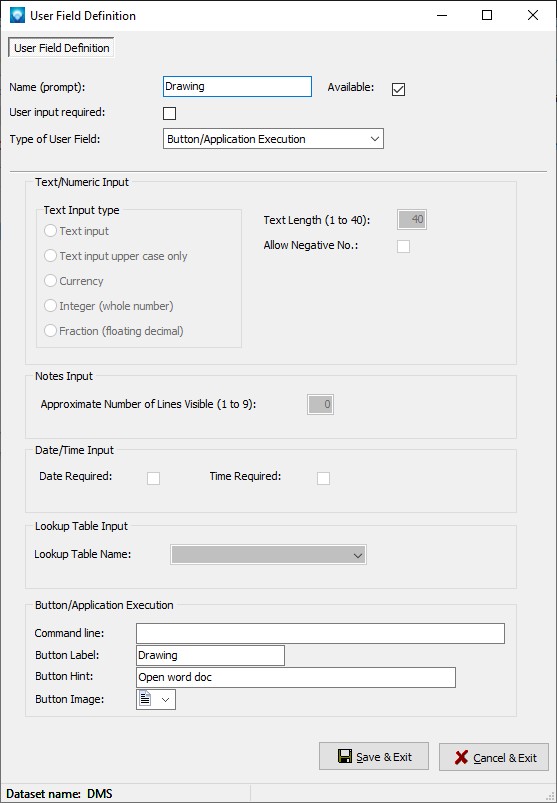
The example below shows the User Field Definition screen if Edit was selected. In the example below, the user fields is a Button/Application execution. The button will open the default Windows application depending on the file extension of the file being opened as the Command line is blank. The button label will appear on the screen with text of "Drawing", the button hint will be "Open word document" and the button image will appear as  :
:
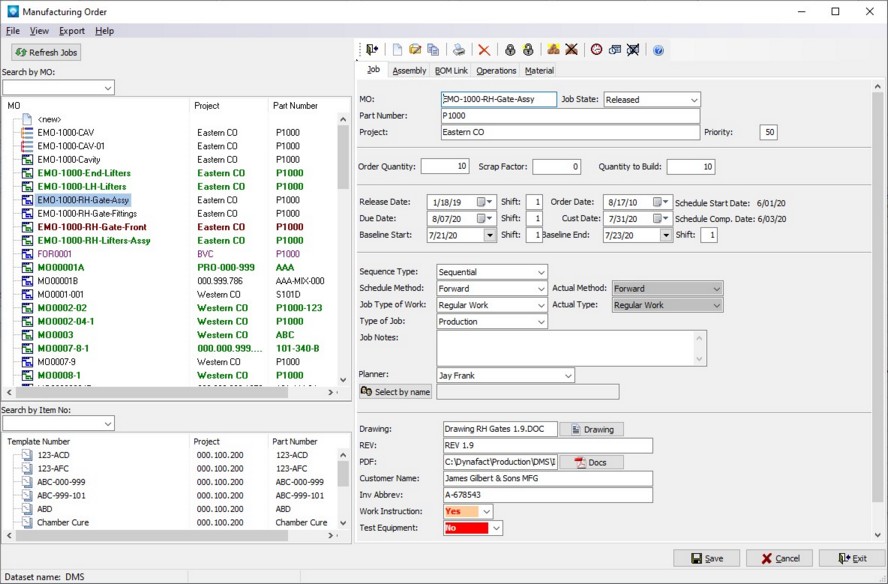
The example screen below shows a job with seven user fields. There are two use fields with buttons; Drawing and PDF. Clicking on the button will open the file . Note that the file location has the folder as well as the filename in the user field prompt. Two other lookup user fields are present; Work Instruction and Test Equipment. These lookup user fields have colors selected by the user where the foreground and background show in different colors depending on the lookup item selected: